Practical guide
How to convert iPhone HEIC photos to JPG
You sent a photo from your phone and the other person could not open it. You tried to upload one to a website and it was refused. The reason is the same every time: the iPhone saves photos as HEIC, and much of the rest of the world still expects JPG. This tool converts them in your browser, without uploading the photos anywhere.
What HEIC is, and why Apple uses it
Since iOS 11, the iPhone camera saves photos in HEIC by default: an image packed in a HEIF container and compressed with a video-grade codec. The file takes roughly half the space of a JPEG of comparable quality, which saves a great deal of room on the phone and in iCloud.
The trouble starts outside Apple's devices. Windows needs an extra codec extension from the Microsoft Store to display HEIC. Many email clients, marketplaces and official upload forms reject the extension outright. A JPG, by contrast, has opened everywhere for a quarter of a century.
Convert HEIC to JPG in three steps
- Choose one or more .heic or .heif photos.
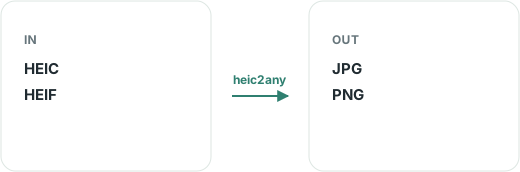
- Pick the output — JPG for photos, PNG when you need a lossless image — and set the quality.
- Download the converted photos one by one or as a ZIP archive. The originals are left untouched.
JPG or PNG
JPG is the right choice for almost every photograph. Its lossy compression suits images full of fine colour gradients, and the file stays small. PNG only makes sense for screenshots, images with small text, or graphics with flat areas of colour, where JPG compression can leave marks around edges. On an ordinary photo, PNG gives you a file several times larger with nothing you can see in return.
When one photo becomes several files
A HEIC file can hold more than one image, for example a series of frames saved together. The converter extracts all of them and numbers them with the suffixes -1, -2 and so on. If one photo gives you three files, that is what happened — it is not a mistake.
What to know about quality
Converting re-encodes the image, so it passes through a lossy step. At the default setting the difference is not visible on a normal photo. As you lower the quality slider the file shrinks, and artefacts show up first in smooth areas — a clear sky, a white wall, a stretch of water.
If the photo will be printed or edited further, keep the quality high. If you are sending it through a messaging app, it will be recompressed on arrival anyway, so there is no point starting from the maximum.
What this converter does not do
It does not edit the photo. No cropping, rotating or colour correction; for those there are Resize image and Rotate image.
It does not promise to keep camera data. The image is re-encoded, and the information the camera attached may not carry over. If you want it removed deliberately — the place a photo was taken, for example — use Remove metadata.
It does not handle every HEIF variant. The decoder is libheif compiled to JavaScript, and it handles the files iPhones and ordinary cameras produce. An unusual or damaged file is refused with a message naming it, rather than converted badly without warning.
The alternative: change the setting on the phone
If this keeps happening, stop it at the source. On an iPhone, open Settings → Camera → Formats → Most Compatible. From then on the camera shoots straight to JPEG. The photos take more space, but there is nothing left to convert. Photos you have already taken stay in HEIC — for those, use the tool on this page.
Why it matters that this runs locally
Personal photos are among the most sensitive files on a phone. They show faces, homes and children, and often carry the exact location where they were taken. A typical online converter uploads them to a server, where they stay for a period you do not control.
Here the photo is read through the browser's File API, decoded in this tab's memory and written out again on your device. The network is used once, to fetch the decoder itself; your photos are not part of that request.
Frequently asked questions
Why won't my iPhone photos open on Windows?
Since iOS 11 the iPhone camera saves in HEIC by default. Windows needs an extra codec extension from the Microsoft Store to show it, and many websites and apps refuse .heic uploads outright. A JPG opens everywhere.
JPG or PNG — which should I choose?
JPG for photographs: much smaller files and universal support. PNG only when you need a lossless image, such as a screenshot with fine text. For an ordinary photo, PNG produces a file several times larger with no visible gain.
Why did one photo turn into several files?
Some HEIC files hold more than one image, for example a series of frames saved together. Each image inside becomes its own file, numbered -1, -2 and so on. That is not an error.
Is the quality preserved?
The photo is re-encoded, so there is some loss. At the default quality the difference is not visible on an ordinary photo. Lowering the slider makes the file smaller, and artefacts appear first in smooth areas such as a clear sky.
Is the location and camera data kept?
Do not rely on it. The image is re-encoded and the data the camera attached may not carry over. If you want it removed on purpose, use the metadata tool.
How many photos can I convert at once?
Up to 30 files per batch, at most 200 MB per file and 500 MB in total. Download them one by one or together as a ZIP archive.
Are my photos uploaded anywhere?
No. The decoder runs in your browser as a JavaScript library. The photo is read from the file, converted in this tab's memory and offered as a download.